Moving from Service Fusion to TradesWork takes about six weeks done properly, and the hardest parts aren't the data. They're your renewal date, stored cards and phone numbers. The data part is smaller than you might expect, for one plain reason: TradesWork has no dedicated Service Fusion importer. Your customers and price list come across by spreadsheet. Your job, invoice and estimate history stays in the files you export, as your archive.
If that's a dealbreaker, better to know now. If you mainly need your customers, prices and memberships running on day one, read on. This guide is written by TradesWork; Service Fusion facts come from its own help center, pricing page and subscription agreement, checked October 15, 2026.
The whole move on one page
Week -2
Dates and exports
Confirm your term end and 30-day notice deadline. Run every Service Fusion export and store the files outside Service Fusion.
Week -1
Sandbox and phones
Start the trial, import customers and the price list into a sandbox company, fix rejected rows, start the phone port.
Week 1
Real import and rebuild
Import into your company. Rebuild memberships, templates and equipment for members.
Week 2
Pilot crew
One crew runs on TradesWork while Service Fusion stays live. Re-drop newer exports weekly.
Week 3
Office and cards
Office moves over; send card links to members on recurring billing. Connect QuickBooks Online with a cutover date.
Week 4
Everyone, then notice
Remaining crews move. Confirm the port is done, run final exports, then send written notice before the deadline.
Start with your renewal date
Service Fusion's pricing page says plans are month-to-month with no contract required, with 15% off for annual pricing.1 Its subscription agreement adds that the term renews automatically for periods equal to your initial term, that you end it with 30 days' written notice before the term ends, and that fees are non-refundable.2 If you prepaid a year, switching mid-term means paying for both.
So find your term end date first. Count back 30 days for the notice deadline, then back another six weeks for the switch itself. That's your start date.
What moves, and what stays behind
- Customer List (custom).xlsxImportsCustomers, each with a first service locationName is required; phone, email and address are matched by you. A company name with no person name imports as a commercial customer.
- Product Catalog export.xlsxImportsPrice bookName and price required; code, description, category and cost if you map them. Member price has no field to map to.
- Service Catalog (if support sends it)PartlyPrice bookMulti-rate services flatten to one price per row. Check your top 50 by hand.
- Sales Revenue report (jobs)Keep as archiveYour archiveJob history doesn't import from a spreadsheet.
- Estimates reportKeep as archiveYour archiveRe-quote open estimates in TradesWork.
- Invoice reportKeep as archiveYour archiveHistory is already in QuickBooks; keep the file for disputes.
- Service agreements tableKeep as archiveYour membership rebuild listRe-create each active agreement as a TradesWork membership.
- Equipment (no documented export)Keep as archiveAdded by handStart with members' systems.
Our Service Fusion export guide walks every screen with illustrated click paths. In short:
- Customers: Reports, Reports Dashboard, Customer List, Custom. Leave the date range blank, move all columns across, choose Excel.3
- Products: My Office, Product Catalog, Export. The Excel file includes every product, active or inactive, with unit price, cost and member price.4
- Services: My Office, Service Catalog. The help center doesn't document an export button there, so check your screen or ask support.4
- Jobs, estimates, invoices: Reports Center and the custom Invoice report, run one year at a time.
- Service agreements: Customers, Service Agreement Management, then the Excel export on each table.5
Store every file outside Service Fusion. After termination, the agreement lets Service Fusion deactivate your account and delete the data, with no fixed retention period.2
Tidy the files before you drop them
Ten minutes in Excel saves an hour of fixing rows later. Work on a copy and keep the original Service Fusion export untouched as your archive.
- One row per customer. If the Customer List file repeats a customer for each address, keep one row with the main service address and list the others to add by hand.
- Check the duplicates Service Fusion already has. Two records for the same household come across as two customers. Merge them in the file now, not in TradesWork later.
- Fix the price cells. Every Product Catalog row needs a name and a number in the price column. Replace text like "see notes" or "call for price" with a number, or leave it empty.
- Drop what you don't sell any more. Inactive items are easier to leave out now than to archive one by one.
- Keep the ID columns. IDs are what let a re-dropped file update records instead of duplicating them.
Members with an active service agreement are worth flagging now: add a column marking them, so you can find them later for card links and membership rebuilds.
Bring it into TradesWork
Go to Settings › Integrations and open the importer. You need the Owner or Admin role. The importer reads files you exported, as CSV, Excel or a ZIP, up to 50 MB per drop. It never logs in to Service Fusion. Click through the real screens:
1. Choose Another system or a spreadsheet
The importer opens on a source. Press Another system or a spreadsheet in the row of source buttons; Service Fusion doesn't have its own button.
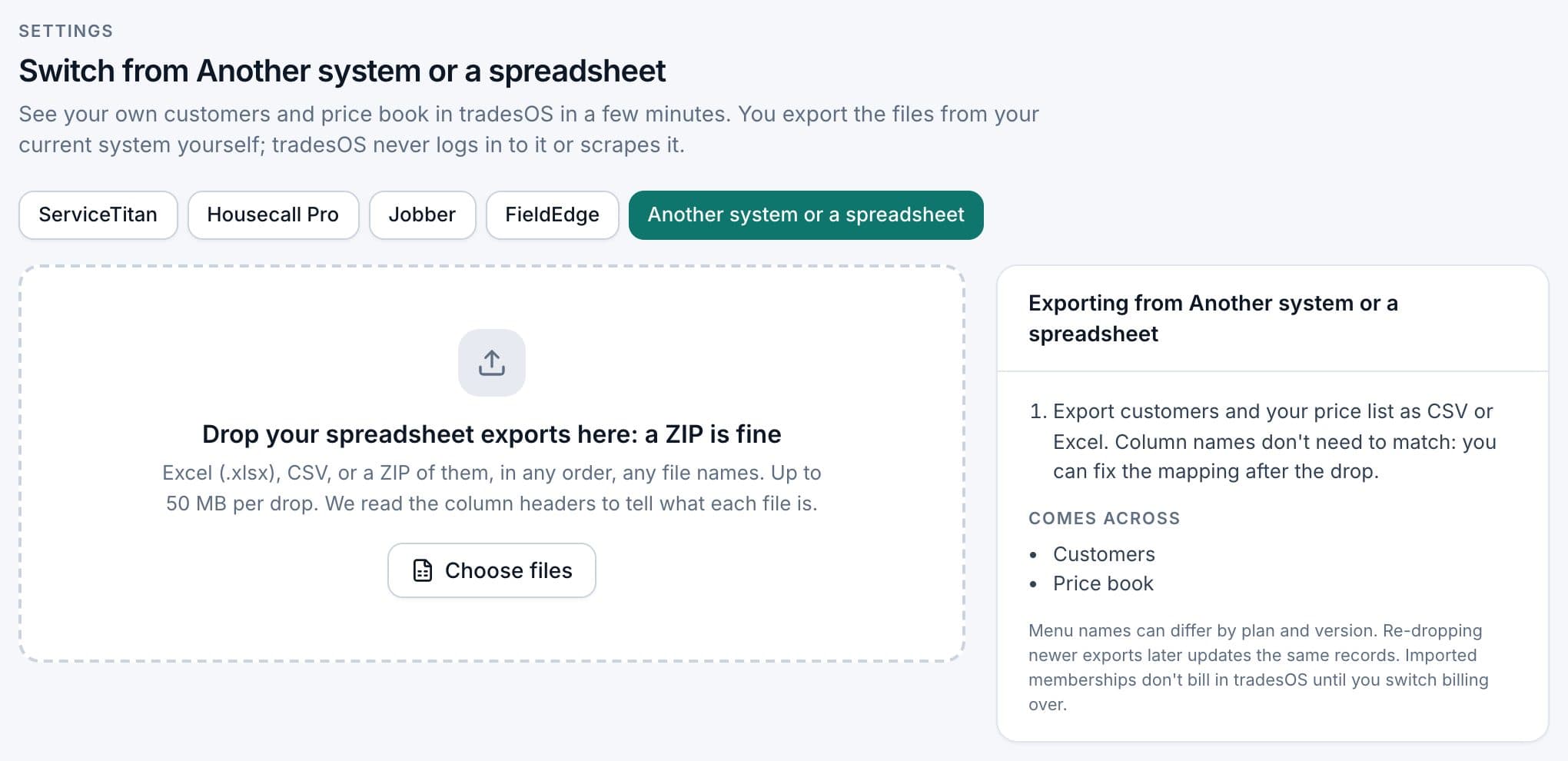
Before you press Import, Preview: your data in TradesWork shows the first 20 rows exactly as they'll appear. Nothing is saved until then.
A few things the spreadsheet importer does that are worth knowing:
- Each customer's address becomes their first service location. Customers with several service addresses need the extra locations added.
- Name in one column or two both work. A customer with a company name and no person name imports as commercial.
- Prices tolerate a $ sign and commas, but text like "call for price" is rejected with the row listed. Use a number or leave it empty.
- The product export is the easy part. Service Fusion services can be built from several rates plus materials, and a flat spreadsheet loses that structure, so check your top 50 services by hand.4
Set up by hand
Some things never come out of any system as data. Rebuild these in TradesWork:
- Memberships. Use your service agreements export as the checklist: customer, plan, price, dates and billing frequency. Memberships are on Pro and up.
- Member pricing. Your Product Catalog's member price doesn't map in the spreadsheet importer, so set member prices on the items your members buy most.
- Templates, forms and automations. Text and email templates, job checklists, follow-ups and pricing rules.
- Equipment for customers you service regularly, starting with members.
- Reviews stay on Google and Yelp, where they already live.
If your team is used to Service Fusion's words and menus, that's a training cost. Plan an hour or two per person.
Run both side by side
Don't switch everyone on one day. Pick one crew and run them on TradesWork for two to four weeks while everyone else stays on Service Fusion.
While both are live, keep Service Fusion as the source of truth for customers. Re-export your customer list and price list each week and drop them into TradesWork again. Re-dropped files update the same records instead of creating duplicates: customers match on the customer ID column if you map one, otherwise on name and address; price list items match on ID or code, otherwise name. If a name or address changed between files, that customer looks new, so keep them consistent.
When the pilot crew is comfortable, move the office, then the rest of the crews.
Cards, phone numbers and accounting
Saved cards. Service Fusion stores payment tokens on each customer's Financial Data tab, with details like last four digits and expiry, tied to its payment processor.7 Those tokens can't move. Connect your own Stripe account in TradesWork first; customers then re-save a card on their next payment or through a secure link you send. TradesWork never sees card numbers. Start with members on recurring billing, and stop each one's Service Fusion billing only after their card is saved in TradesWork.
Phone numbers. Port them. In TradesWork go to Settings › Phones › Numbers, Routing & Texting › Bring your numbers. Ports usually take one to two weeks. If your numbers moved to ServiceCall.ai, Service Fusion's own help center says porting in can take up to four weeks and needs a signed letter of authorization and a recent bill,8 so expect the same paperwork going out. Never cancel the old phone service until the port shows done. Text-message registration starts fresh in TradesWork.
Accounting. Connect the same QuickBooks Online company Service Fusion syncs to, and set a cutover date so only new invoices and payments post. Your history is already in QuickBooks; posting it again would duplicate it. Turn off Service Fusion's sync on cutover day. If you use QuickBooks Desktop, which Service Fusion supports,9 note that TradesWork connects to QuickBooks Online only.
What switching costs
Count the real cost before you start. The rows below are placeholders and labelled examples, not quotes.
| Cost | How to estimate | Example: 5 techs, 4 office |
|---|---|---|
| Overlap subscription | Months you pay both. Service Fusion fees are non-refundable,2 so switch near your renewal date | Example: 1 month of Service Fusion Pro at $533 (annual rate)1 |
| Office time: exports and cleanup | Your hours × your loaded office wage | Example: 12 hours |
| Re-collecting cards | Members on autopay × a few minutes each, plus follow-ups | Your number |
| Phone port fees | Check your carrier | Check your carrier |
| Training | People × hours × wage | Example: 9 people × 2 hours |
| Rebuilding memberships and templates | Agreements and templates × minutes each | Your number |
| Renewal exposure | Miss the 30-day notice and the term renews for another full term2 | Avoid by giving notice on time |
Switch checklist
- Term end date and 30-day notice deadline in the calendar
- All Service Fusion exports saved outside Service Fusion
- Phone port started in week one
- Customers and price list imported into a sandbox, then your company
- Failed rows downloaded, fixed and re-dropped
- Memberships rebuilt from the service agreements export
- Member prices set on your most-used items
- Templates, forms and automations rebuilt
- Card links sent to members on recurring billing
- QuickBooks Online connected with a cutover date; Service Fusion sync off
- Port shows done before old phone service is cancelled
- Written notice sent before the deadline
Who shouldn't switch yet
Be honest with yourself on these. TradesWork is new in 2026 and runs far fewer shops than Service Fusion, which says it has more than 6,500 customers.10 Financing lenders aren't connected yet, there's no route-day scheduling for lawn, pest or pool, and there's no API connection to Service Fusion. If you need your full job history inside your new system on day one, a file import of customers and prices won't give you that.
The TradesWork vs Service Fusion comparison lays out the trade-offs, including where Service Fusion's flat price wins. See pricing for plan details and the switch page for how imports work across systems.
Footnotes
-
Service Fusion, Pricing (plans, no-contract FAQ, annual discount), checked October 15, 2026. https://www.servicefusion.com/pricing ↩ ↩2
-
Service Fusion Subscription Agreement, sections 4.1, 7.1 and 8.1 to 8.2, last modified March 23, 2026. https://www.servicefusion.com/subscription-agreement ↩ ↩2 ↩3 ↩4
-
Service Fusion Help Center, Creating a Customer List Report. https://servicefusion.zendesk.com/hc/en-us/articles/360024040191-Creating-a-Customer-List-Report ↩
-
Service Fusion Help Center, Product Catalog and Service Catalog Breakdown. https://servicefusion.zendesk.com/hc/en-us/articles/4409646851213-Product-Catalog-and-Service-Catalog-Breakdown ↩ ↩2 ↩3
-
Service Fusion Help Center, Service Agreement Management Dashboard. https://servicefusion.zendesk.com/hc/en-us/articles/360059140052-Service-Agreement-Management-Dashboard ↩
-
Service Fusion Help Center, Using Equipment. https://servicefusion.zendesk.com/hc/en-us/articles/11939936568333-Using-Equipment ↩
-
Service Fusion Help Center, Adding a Credit Card on File to the Customer's Account. https://servicefusion.zendesk.com/hc/en-us/articles/37891966870029-Adding-a-Credit-Card-on-File-to-the-Customer-s-Account ↩
-
Service Fusion Help Center, ServiceCall.ai Porting Phone Numbers. https://servicefusion.zendesk.com/hc/en-us/articles/360029258531-ServiceCall-ai-Porting-Phone-Numbers ↩
-
Service Fusion Help Center, QuickBooks Desktop Setup Instructions. https://servicefusion.zendesk.com/hc/en-us/articles/360001111652-QuickBooks-Desktop-Setup-Instructions ↩
-
Service Fusion, home page (customer and user counts). https://www.servicefusion.com/ ↩