A FieldEdge to TradesWork move takes about six weeks if you start from your renewal date and work backward: two weeks to export and set up, two to four weeks running both systems, then notice. The work that decides the timeline isn't the import. It's getting your price book and service agreements out of FieldEdge, and re-collecting cards.
One question comes before everything else. FieldEdge supports QuickBooks Online and Desktop on every plan.1 TradesWork connects to QuickBooks Online only. If your books are in Desktop and staying there, this guide isn't for you yet; the TradesWork vs FieldEdge comparison explains why staying may be the right call.
This guide is written by TradesWork, so read it with that in mind. The screens below are real TradesWork screens with sample files; the FieldEdge facts come from its pricing page, its linked terms and other vendors' help centers, checked October 15, 2026.
The whole move on one page
Week -2
Dates, exports and requests
Read your order form, mark the notice deadline, email FieldEdge support for the seven exports, and run every export your own screens allow.
Week -1
Port, sandbox and rebuild
Start the phone number port. Import into a sandbox company, fix rejected rows, and rebuild forms, alerts and estimate templates.
Week 1
Live import, first crew
Import into your real company. One crew runs all jobs in TradesWork. Connect QuickBooks Online with a cutover date.
Week 2
Office moves
The office books everything in TradesWork. Re-drop fresh FieldEdge exports. Send card-update links to agreement customers on autopay.
Week 3
All crews
Remaining crews move. Turn on membership billing in TradesWork and stop agreement billing in FieldEdge on the same day.
Week 4
Close out
Final exports and archive. Confirm the port is done. Give FieldEdge written non-renewal notice if you haven't already.
Step 1: dates and decisions
Your renewal date. FieldEdge's legal link redirects to Xplor's US SaaS Terms of Service. They say the agreement renews automatically for 12 months unless either side gives written notice at least 60 days before the period ends, and that leaving early costs the monthly fees times the months remaining.2 FieldEdge's own FAQ says downgrades take effect at the end of your current contract period.1 Your signed order form may differ, so read it, then put the notice deadline on the calendar.
Switching at renewal is the cheapest path. If your renewal is eight months away, you can still start: request exports now, trial TradesWork, and plan the cutover for the weeks before notice is due.
Your accounting. Confirm you're on QuickBooks Online. FieldEdge's home page leads with QuickBooks syncing between field and office,3 and its QuickBooks hub makes that integration a centerpiece.4 TradesWork syncs invoices and payments to QuickBooks Online, with mismatches on a fix-it list. It's a solid sync, but it isn't Desktop.
Step 2: get your files out of FieldEdge
FieldEdge's help content is behind a customer login, so there's no public FieldEdge click path to show you. Our FieldEdge export guide has a ready-to-send request letter and a follow-up timeline. In short: ServiceTitan's help center describes exporting the Customers, Invoices, Quotes and Dispatching tabs and the Equipment List report, and warns that invoice exports cover only the last 6 months unless you set the filters to All.5 Sera's support site describes a similar route.6 Neither covers locations, work orders, the price book or service agreements, so email FieldEdge support for those on day one.
Here's what each file becomes in TradesWork:
- CustomersImportsCustomersName, type, phone, email, address, balance and notes. Matched by FieldEdge customer ID on re-import.
- LocationsImportsService locationsLinked to the customer by customer ID or name.
- EquipmentImportsEquipment at each locationMake, model, serial, install date and warranty end. Links by location ID or a matching address, so drop it with locations.
- Work ordersImportsJob historyNumber, status, dates, total and technician. Needs the customer ID or name on each row.
- InvoicesImportsInvoicesDates, total, balance and status. History never posts to QuickBooks.
- Service agreementsImportsMemberships, billing heldType, dates, price, billing frequency and next bill date. Nothing bills until you switch billing over.
- Flat rate price bookImportsPrice bookCodes, names, categories and prices, and member prices when that column is in the file.
- Quotes and dispatch listKeep as archiveYour archiveUseful for follow-up and the cutover snapshot; TradesWork has no FieldEdge layout for them.
- Photos, forms, recordingsKeep as archiveStay in FieldEdgeDownload the ones you need by hand before your access ends.
Step 3: bring it into TradesWork
You need the Owner or Admin role. Go to Settings, Integrations and open the import page. Click through the real screens below.
1. Pick where you're coming from
Press FieldEdge in the row of source buttons. The page becomes Switch from FieldEdge, and Exporting from FieldEdge lists the files to request. Drop CSV, Excel or a ZIP, up to 50 MB at a time, in any order. TradesWork never logs in to FieldEdge.
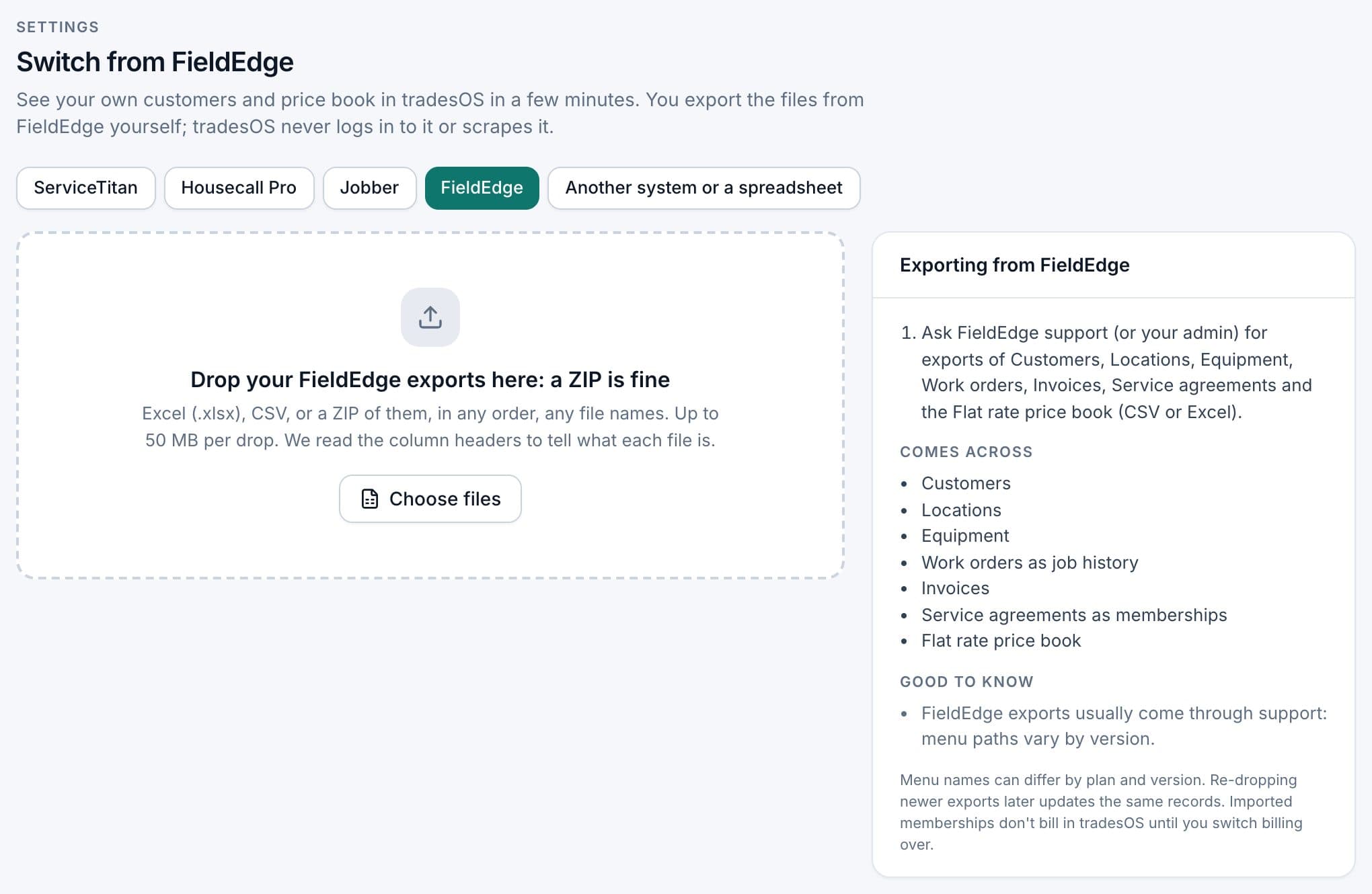
No duplicates on re-drop. Dropping a newer export updates the same records, matched by the FieldEdge ID, or name and address, or price book code. That's what makes the side-by-side run work.
Common snags, from the in-app help: equipment that didn't link needs a location ID or a matching address, so drop locations in the same go. Work orders that came in without a customer were exported without the customer ID; ask FieldEdge for it.
Your team won't have to relearn the menus
TradesWork has four look-and-feel styles, and one of them arranges TradesWork's own menus and words the way FieldEdge users know them: the dispatch board comes first and jobs are called work orders. Each person picks their style in the top bar or under Settings, Your Account, Appearance, and the company sets the default. A style changes the menu layout and the words only. The data, features and reports are the same in every style, and the technician app uses the same words in English and Spanish. Switch between them below.
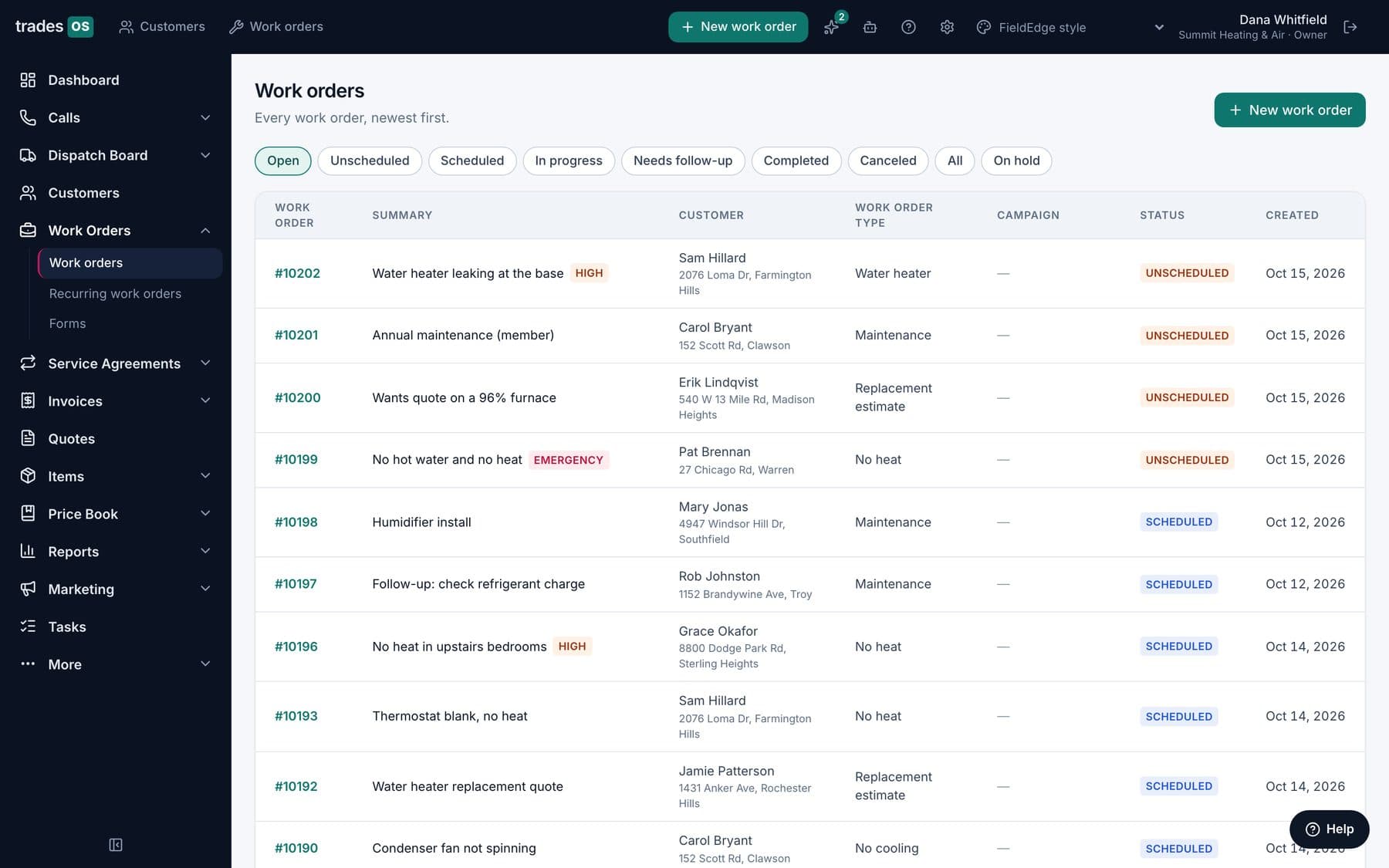
Menu words in this style:CustomersWork ordersAgreementsDispatchInvoices
Real TradesWork screens, demo data. Same jobs, customers, features, reports and integrations in every style; each person picks their own in Settings, and the company sets the default. The technician app uses the same words, in English and Spanish.
ServiceTitan, Housecall Pro, Jobber and FieldEdge are trademarks of their owners. TradesWork is not affiliated with them; the styles only arrange TradesWork's own menus and words the way their users know them.
Step 4: what you set up by hand
Some things don't export from any system, FieldEdge included. FieldEdge lists custom forms, automated alerts, reminders, integrated SMS texting and Proposal Pro as features,1 but we found no export for their setup. Plan to rebuild:
- Forms and checklists your techs fill in on the job, with the TradesWork form builder.
- Alerts and reminders, including agreement visit reminders, from the automation catalog.
- Saved reports and dashboards. Write down the five numbers you look at every week, then build those first.
- Proposal and estimate templates. Rebuild good, better and best options from your imported price book.
- Pricing rules, like member discounts that weren't a column in your export.
- Membership billing settings under Settings, Operations, Memberships, before imported agreements renew.
- Text-message registration, which starts fresh in TradesWork. Register on day one.
Reviews stay where they are, on Google and Yelp. Point review requests at your Google review link.
Step 5: run both side by side
Don't switch everyone on one day. A 2 to 4 week overlap lets you catch problems while FieldEdge is still there to fall back on.
- Week one: one crew, ideally your most patient lead tech, runs every job in TradesWork. The office books that crew in TradesWork and everyone else in FieldEdge.
- Every few days: export fresh customers and invoices from FieldEdge, or ask support for fresh agreement files, and re-drop them. Records update rather than duplicate.
- Week two or three: the office moves fully, then the remaining crews.
- Last week: FieldEdge is read-only for lookups. Nobody books in it.
Step 6: cards, phones and accounting
Cards. Saved cards never transfer in a file. FieldEdge's integrated payments run through a payment processor,1 and card data stays there; TradesWork never sees card numbers. Connect your own Stripe account first. Customers re-save a card on their next payment, or you send a link. Start with agreement customers on autopay, because a missed renewal charge is a lost member. Then turn on membership billing in TradesWork and stop agreement billing in FieldEdge on the same day.
Phone numbers. Start the port in week one, because it takes 1 to 2 weeks. In TradesWork go to Settings, Phones, Numbers, Routing and Texting, then Bring your numbers. Calls keep working at your old provider until then. Never cancel your old phone service until the port shows done. If a texting number lives inside FieldEdge's integrated SMS, ask FieldEdge support in writing how to release it.
Accounting. Connect the same QuickBooks Online company you use today and set a cutover date. From that date, only new invoices and payments post from TradesWork. Imported history doesn't post, because it's already in QuickBooks and posting it again would duplicate it. Turn off FieldEdge's QuickBooks sync on the same date so nothing posts from both.
What switching costs
Fill in your own numbers. The example column is a made-up 8-tech shop, not a quote or an average.
| Cost item | Example: 8-tech shop | Your number |
|---|---|---|
| Overlap months paying both systems | 1 month if you switch before renewal; 0 if your FieldEdge term ends during the side-by-side run | ____ |
| Office hours for exports, requests and cleanup | Example: 20 to 30 hours | ____ |
| Re-collecting cards | Example: 2 to 4 hours of calls and links, plus some missed autopay charges | ____ |
| Phone port fees | Check your carrier | ____ |
| Training hours | Example: 2 hours per tech, 4 per office person | ____ |
| Early termination or renewal exposure | Under the linked Xplor terms, monthly fees times months remaining if you leave early; a full 12-month renewal if you miss the 60-day notice2 | ____ |
| TradesWork subscription | Example: 8 × $99 = $792 a month on Pro, billed annually | ____ |
The line that surprises people is the last-but-one. Missing a 60-day notice window can cost more than every other line combined, which is why Step 1 is about dates.
FieldEdge to TradesWork checklist
- Order form read; non-renewal notice deadline on the calendar
- Books confirmed on QuickBooks Online
- Written request for the seven exports sent to FieldEdge support
- Customers, invoices (filters set to All), equipment, quotes and dispatch list exported and dated
- Phone number port started in week one
- Sandbox import checked against twenty customers you know
- Rejected rows downloaded, fixed and re-dropped
- Forms, alerts, report setups and estimate templates rebuilt
- Each person's look-and-feel style chosen
- QuickBooks Online connected with a cutover date; FieldEdge sync off the same day
- Card-update links sent to agreement customers on autopay
- Membership billing on in TradesWork and off in FieldEdge the same day
- Original FieldEdge files archived in two places
Where TradesWork won't fit
Be clear-eyed before you start. TradesWork is new in 2026 and far fewer shops run on it than on FieldEdge. It has no QuickBooks Desktop connection, no warehouse inventory tied to QuickBooks Desktop Enterprise, no connected financing lenders yet, and no route-day scheduling for lawn, pest or pool work. If any of those is central to how you run, stay put or look at the other FieldEdge alternatives.
If it does fit, start the 14-day trial with no card, import into a sandbox company, and see your own customers in it before you commit.
Footnotes
-
FieldEdge, Pricing (plan comparison table and FAQ), checked 2026-10-15. https://fieldedge.com/pricing/ ↩ ↩2 ↩3 ↩4
-
Xplor Technologies, US SaaS Terms of Service, last update October 2023, sections 1.2, 2.2 and 13.4 (fieldedge.com/legal redirects here). https://www.xplortechnologies.com/wp-content/uploads/sites/13/2024/05/231026-Xplor-US-SaaS-Terms-Online-v1-2.pdf ↩ ↩2
-
FieldEdge, home page. https://fieldedge.com/ ↩
-
FieldEdge, QuickBooks resource hub. https://fieldedge.com/quickbooks-resource-hub/ ↩
-
ServiceTitan help center, Export your FieldEdge data (a competitor's article), checked 2026-10-15. https://help.servicetitan.com/docs/export-your-fieldedge-data ↩
-
Sera support, Data export instructions for FieldEdge (a competitor's article). https://support.sera.tech/data-export-instructions-for-field-edge ↩