You can have a working TradesWork account with your own ServiceTitan customers, locations, price book, email opt-outs and open balances after four exports and one QuickBooks connection. That's about four minutes of clicking once you know where each button is. Your full job, invoice and membership history follows from a handful of reports you build once in ServiceTitan, and those same reports, scheduled to email daily, keep TradesWork current while you run both systems for a few weeks.
What doesn't come across in a file (stored cards, phone numbers, call recordings, automations) each has its own route, covered below. This guide is the whole plan, in the order we'd do it, with the real TradesWork screens you'll see along the way.
The whole move on one page
Week -2
Date it and try it
Find your ServiceTitan renewal date and notice window. Start a TradesWork trial, run the four exports, connect QuickBooks and import into a sandbox company.
Week -1
Build the history reports
Create the Jobs, Invoices, Customer Memberships, Equipment, open Estimates and A/R reports in ServiceTitan. Export each for all time and drop them into the sandbox to check the mapping. Submit your phone port.
Week 1
Real import, mirror on, one crew live
Import everything into your real company. Schedule the reports to email your import address daily. Put one crew on the TradesWork tech app.
Week 2
The office moves
CSRs book in TradesWork; ServiceTitan becomes read-only reference. Start asking members on autopay to re-save cards. Agree the accounting cutover date.
Week 3
Reconcile and sign off
Run the QuickBooks reconciliation and clear the mismatch list. Check membership counts and visits due. Switch your Google booking link.
Week 4
Cut over
Final export of open A/R and memberships, stop mirroring, start membership billing in TradesWork, turn off ServiceTitan autopay for members who re-saved a card.
After
Archive and close out
Download photos and signed paperwork you need, confirm your written termination export request, and keep every export file in a folder you control.
Shops at the 30 to 50 tech end, or with several business units, should stretch weeks 2 and 3. The mirror makes that cheap: an extra week of side-by-side costs you nothing but the scheduled emails.
Why this is a file-based migration
ServiceTitan has an API, and it would be the fast route. Its API Terms rule it out: they prohibit applications whose primary purpose is migrating customers off the platform1. The Terms of Use also restrict third parties, including automated tools, from accessing the service on your behalf2. So TradesWork never asks for your ServiceTitan password or API keys, and you should be wary of any vendor that does.
What you are entitled to is your data. ServiceTitan's Terms of Use say the customer owns its customer data2, and every export in this guide is a button ServiceTitan puts on its own screens for you. The click paths below come from ServiceTitan's help center, checked October 15, 2026. Your package and user role change what you see, so if a button isn't where we say, search the help center for it by name.
Every ServiceTitan file, and what it becomes
This is the full list the importer recognizes. You don't need all of it on day one: the first four rows plus QuickBooks give you a working office.
- Pricebook export.xlsxImportsPrice book: services, materials, equipment, categoriesEach sheet is read separately. Items with the same code from several business units are merged.
- Advanced Search: CustomerImportsCustomersType, status, member status, balance, tags and custom fields come across; custom fields become notes on the customer.
- Advanced Search: LocationImportsService locationsEvery service address linked to its customer, with zones and tags.
- Marketing Contacts + SuppressionImportsEmail suppression listBounced, invalid and unsubscribed addresses, so TradesWork never emails them.
- Customer Memberships reportImportsMembershipsType, dates, status and next billing date. Billing stays off until the owner starts it.
- Recurring Service EventsImportsVisits dueEach visit lands on its membership, so drop it with the memberships report.
- Jobs reportImportsJob historyNumbers, business unit, job type, campaign and a completed appointment, with techs matched by name.
- Invoices reportPartlyInvoice historyTotals and paid status as one line per invoice. Line items stay in ServiceTitan and QuickBooks.
- Accounts Receivable (Detail)ImportsOpen invoicesWhat's still owed. Credit balances are listed for you to note, not imported.
- Equipment reportImportsEquipment on each locationLinks by Location ID, so drop the Location export in the same go.
- Estimates report (open)ImportsFollow Up boardAutomated follow-up texts stay off for imported estimates until you start them.
- Tasks exportImportsOffice tasksStatus, priority, due date and assignee matched to your team by name.
- Pricebook: service linksPartlyMaterials linked to servicesRecognized and kept in the file for now; the links aren't rebuilt yet.
- Saved Payment Methods reportKeep as archiveYour card re-collection listRecognized, but no card numbers are read. Cards can't move between processors this way.
Before you start: two decisions
Pick your cutover window. Find your ServiceTitan renewal date and notice window in your agreement. Early termination generally leaves the remaining payments owed2, so most shops aim to cut over a few weeks before renewal. Our guide on how to cancel ServiceTitan covers notice timing.
Start in a sandbox. In TradesWork, import into a sandbox company first. It's a separate company you can look around in with your real customers and prices, then delete. When you're happy, import the same files into your real company. Nothing you do in the sandbox touches billing or accounting.
The four-minute path to a working account
These are the exports that give TradesWork enough to run your office tomorrow. Times are for someone who has done it once; your first pass will be slower while you find the menus. In ServiceTitan you need a role that can export, usually Admin or Office.
1. Price book (about 45 seconds)
- 1Pricebook
- 2Import/Export
- 3Export tab
- 4Export pricebook
ServiceTitan's help center says the export includes the items in the pricebook categories linked to the business unit you pick3. Several business units? Export each and drop them together; TradesWork merges items with the same code. Price book images don't come across in the spreadsheet; prices, codes, descriptions and categories do.
2. Customers and 3. locations (about 75 seconds)
- 1Search
- 2Customers
- 3Expand
- 4Export to Excel (*.xlsx)
The help center's route is the search in the top bar, with Customers chosen and no filters, so every customer record loads4. The TradesWork export assistant points you to Advanced Search (the magnifier in the top bar) with object type Customer, which carries customer type, status, member status, balance, tags and custom fields. Then run it again with object type Location for every service address, with zones and tags. Both files are recognized.
If the file has exactly 1,000 or 5,000 rows, it was probably cut off by a filter or a limit. Clear every filter and search again.
4. Email consent (about 45 seconds)
Marketing › Audiences › Contacts › Export, then Marketing › Audiences › Suppression › Export. Download both from Marketing › Analytics › Data Exports; they take a minute to prepare. These carry unsubscribes and bounces, so TradesWork never emails someone who opted out.
5. Connect QuickBooks Online (about 60 seconds)
In TradesWork, press Connect QuickBooks and sign in to the same QuickBooks Online company ServiceTitan already syncs to. TradesWork reads customers, open invoices and payments. It never writes to QuickBooks during the switch.
Two optional exports are worth the extra minute if you sell maintenance: Follow Up › Recurring Service Events › Export for visits coming due, and Tasks › Export as… › Excel for open office tasks.
Bring it into TradesWork
Open Settings › Integrations › Import from ServiceTitan. You need the Owner or Admin role, and a computer rather than a phone. Files can be Excel, CSV or a ZIP of them, up to 50 MB per drop, in any order and with any file names. Click through the real screens:
1. Pick where you're coming from
ServiceTitan is selected in the row of source buttons. The drop zone takes Excel, CSV or a ZIP. TradesWork never logs in to ServiceTitan.
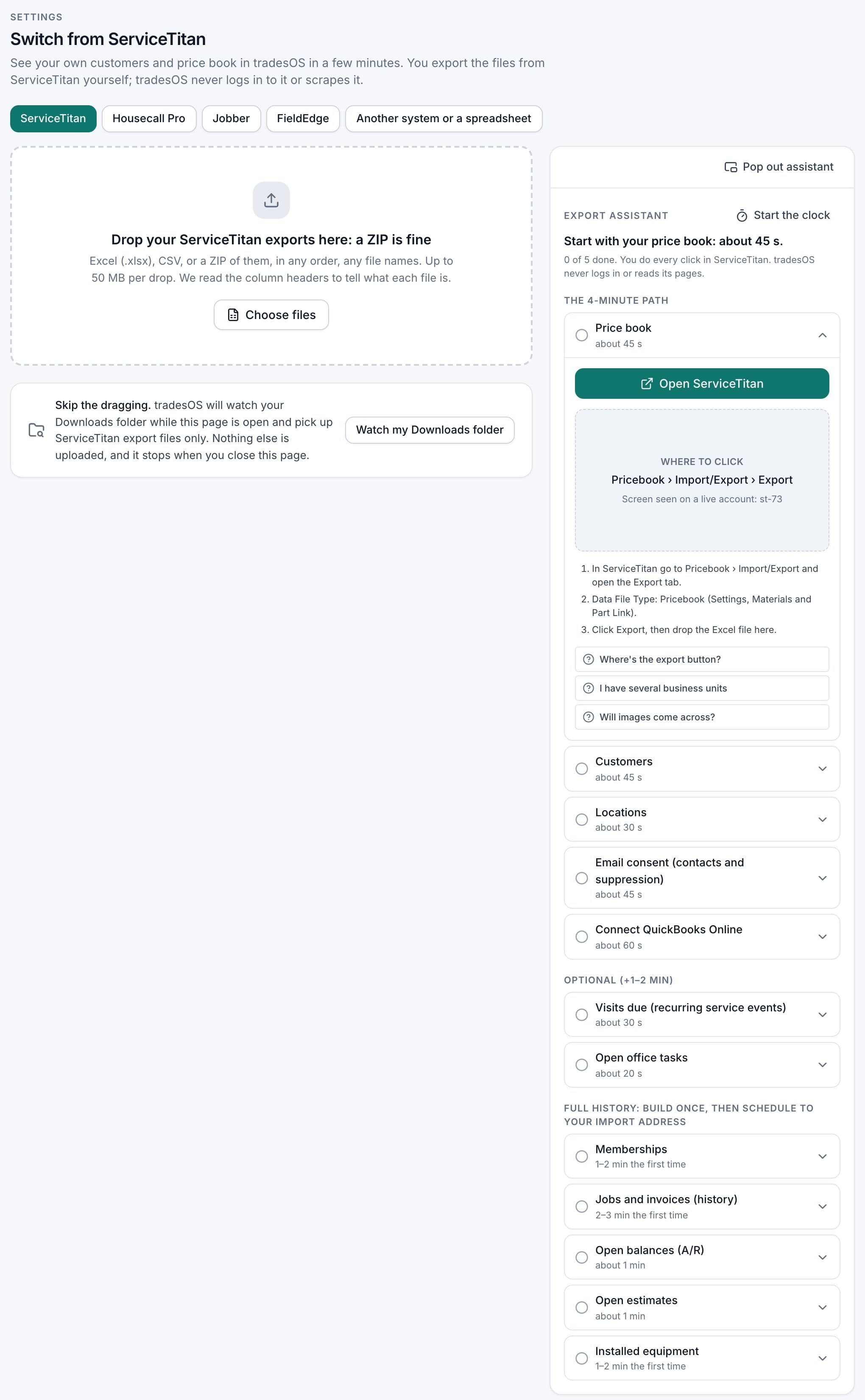
At this point your CSRs can look up any customer, book a job at the right address and quote from your own prices. Your techs can build good, better and best options from your price book on their phones.
Full history: six reports you build once
Job, invoice and membership history comes out of ServiceTitan through reports. Create each one under Reports › All Reports › Create Report from the template named below, run it for all time (in yearly chunks if you have years of data), and export to XLSX. Creating custom reports from templates depends on your ServiceTitan package5; if a template is missing, ask your customer success manager.
- 1Reports
- 2Run Report
- 3Export
- 4Export to XLSX
Any ServiceTitan report can export to XLSX or PDF from the Export button above the results6. If nothing downloads, check whether your browser is blocking pop-ups.
| Report (template) | What it gives TradesWork | What TradesWork does with it |
|---|---|---|
| Jobs | Job history: number, business unit, job type, campaign, status, techs, totals | Imported as completed jobs that keep their numbers, with techs matched to your team by name |
| Invoices | Invoice history with totals and balances | Imported with totals and paid status; never posted to accounting |
| Customer Memberships | Active plans, types, dates, next billing date | Imported as memberships with billing held until the owner starts it |
| Equipment | Installed equipment per location: make, model, serial, install date, warranty | Imported onto each location |
| Estimates (status Open) | Open estimates by job | Onto the Follow Up board; automatic follow-up texts start off |
| Accounts Receivable (Detail), under Legacy Reports | Open balances by invoice | Imported as open invoices showing what's still owed |
The A/R Management screen itself can't export to Excel. ServiceTitan's help center points you to a report instead7, which is why the A/R report is on this list. If you prefer it, the AR Transactions By Customer report works too.
Two details make history behave. First, new TradesWork job numbers start above your highest ServiceTitan job number, so QuickBooks never sees a duplicate document number. QuickBooks Online rejects duplicates outright, which is a common sync error ServiceTitan users already know8. Second, every imported record is keyed to its ServiceTitan ID, so dropping a newer export updates the same records instead of creating duplicates.
Free download · PDF + ExcelThe ServiceTitan Exit KitContract timeline, every export to run, a cut-over plan and the questions to ask before you give notice.The daily mirror: run both without double entry
The hard part of any switch isn't the first import. It's the two to four weeks when some of your team is in the new system and some isn't. TradesWork handles this with a mirror.
- 1Reports
- 2Calendar icon
- 3Simple Report
- 4Schedule report
Every TradesWork company gets its own import address. In ServiceTitan, find each report under Reports › All Reports and click its calendar icon, or open it and choose More › Schedule; you can see them all under Reports › Scheduled9. Schedule the six reports above (Jobs and Invoices on a rolling 30 days is enough after the first full run) to email daily as XLSX. ServiceTitan's help center says recipients are employees or technicians with an email address in their profile9. Some accounts let you put the import address on an employee profile. If yours doesn't, send the reports to your own mailbox and set a forwarding rule to the import address.
Each morning, TradesWork runs the attachments through the same recognize, map and import steps as a manual drop, with any column fixes you made the first time remembered. The import screen keeps a mirror log of every email: when it was received, which report, which files and the result. When you're done, press Cut over: stop mirroring and TradesWork stops importing those emails. Then turn the schedules off in ServiceTitan.
Your team won't have to relearn the menus
The biggest hidden cost of a switch is your office relearning where everything lives. TradesWork has four look-and-feel styles, and the ServiceTitan style is the default. It follows ServiceTitan's menu order and uses its words: Customer, Location, Job, Appointment, Business unit, Job type, Campaign, Pricebook, Estimate, Invoice. Flip the styles below to see the same data in each.
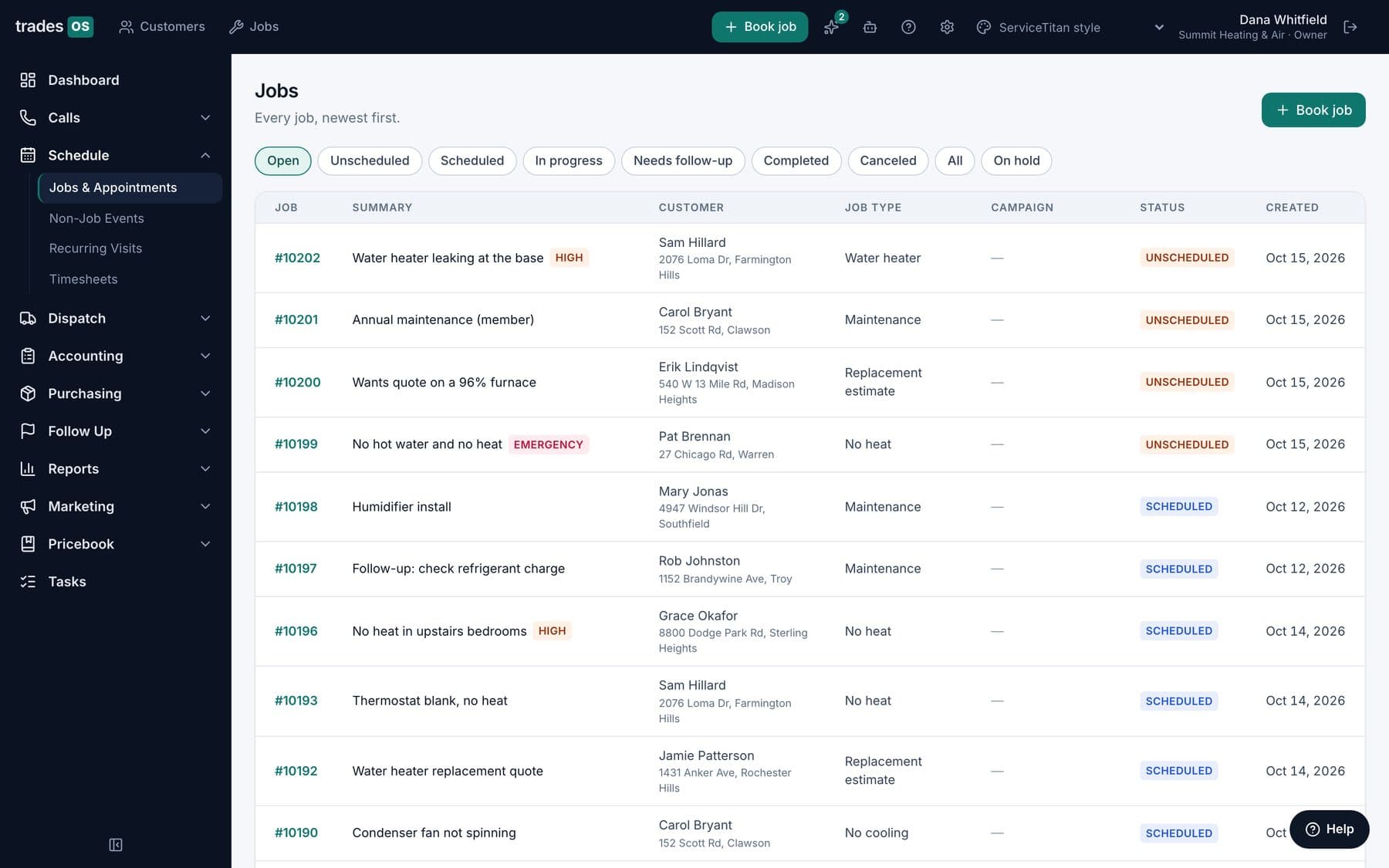
Menu words in this style:CallsScheduleDispatchAccountingPurchasingFollow UpPricebookTasks
Real TradesWork screens, demo data. Same jobs, customers, features, reports and integrations in every style; each person picks their own in Settings, and the company sets the default. The technician app uses the same words, in English and Spanish.
ServiceTitan, Housecall Pro, Jobber and FieldEdge are trademarks of their owners. TradesWork is not affiliated with them; the styles only arrange TradesWork's own menus and words the way their users know them.
Each person picks their own style in the top bar or under Settings › Your Account › Appearance, and the company sets the default for new users. A style changes menu layout and words only: the data, features and reports are identical, so a CSR in one style and a manager in another are looking at the same records. The tech app uses the same words, in English and Spanish.
Reconcile against QuickBooks before you sign off
ServiceTitan already syncs your invoices and payments to QuickBooks, which makes your books the best second opinion on whether the migration is complete.
With QuickBooks Online connected, press Reconcile with QuickBooks. TradesWork compares your books with what came from the files:
- Customers: how many are in QuickBooks, how many came from the files, and how they matched (by email, then phone, then exact name).
- Open A/R: count and dollar total in QuickBooks against the files, with the difference to the penny.
- Invoices and payments: counts and totals on both sides.
- A mismatch list: every customer or invoice that exists on only one side, and every balance that differs.
If the files are missing open invoices that QuickBooks has, press Bring missing A/R and invoices from QuickBooks to bring them across as imported history. Nothing is written back to QuickBooks during this step. One honest note: the QuickBooks read path is new and still being proven on real QuickBooks files, so read your first reconciliation line by line.
What you set up by hand
| Item | Moves by file? | How it's handled |
|---|---|---|
| Text-message consent | No | Not in the exports; register for texting in TradesWork on day one and treat texts as transactional until customers opt in again |
| Stored cards and autopay | No | Re-collected (see below) |
| Phone and tracking numbers | No | Ported on carrier time |
| Photos, attachments, call recordings | No | Stay in ServiceTitan; ask for them in your termination export request |
| Past invoice line items | No | History imports each invoice's total as one line; open ServiceTitan or QuickBooks for detail |
| Materials linked to services | Not yet | The service links sheet is recognized and kept; relink the ones you rely on |
| Automations, forms, dashboards, report designs | No | Rebuilt from TradesWork's built-in automations, form builder and reports |
| Payroll history, inventory counts | No | Set pay rates fresh; recount inventory at cutover |
| Reviews | Not needed | They live on Google and Yelp, not in ServiceTitan |
Stored cards and membership autopay
This is the part that takes the most patience. ServiceTitan stores a token and the last four digits of each card; the card data itself sits with the payment processor10. A token from one processor doesn't work at another, so cards don't come across in an export. In principle, processors can transfer encrypted card data to each other at the merchant's request, but that depends on ServiceTitan, as the platform account holder, agreeing to request it. Plan as if it won't happen.
The plan that works:
- Run the Saved Payment Methods report in ServiceTitan5. It's your list of who has a card on file. Sort members on autopay to the top.
- Leave old autopay running in ServiceTitan until each member has a card in TradesWork. Nobody should miss a renewal because you switched software.
- Ask each member to re-save a card from their TradesWork link, ideally about ten days before their next bill date. A short text that says why ("we've moved to a new system; please re-save your card here") works better than a long email.
- Start billing imported memberships in TradesWork only when ServiceTitan has stopped. Each keeps ServiceTitan's next billing date when it's still ahead, and nothing is billed for past periods.
Phone numbers and call tracking
Your numbers move by porting, not by export. ServiceTitan documents its port-out process: give your new carrier a screenshot of Settings › Phone Numbers, make sure the zip code matches the account, use your Tenant ID as the account number, and download a billing invoice before your final date11. In TradesWork, start at Settings › Phones › Numbers, Routing & Texting, where Leaving ServiceTitan? What to enter walks you through it.
Porting runs on carrier time. Simple ports can complete in a business day or so; carriers quote anything from a few business days to three or four weeks for complex or toll-free numbers12. Submit the port in your first week, and keep ServiceTitan's phones active until it completes, since calls keep routing there until then. If you use tracking numbers for campaigns, map each one to the same campaign name in TradesWork so your lead-source reporting doesn't break at cutover.
Online booking and Reserve with Google
If you take bookings through Google, check how. ServiceTitan offers Reserve with Google, and the booking link on Google Local Services Ads is now powered by Reserve with Google13. Google's Actions Center shows only one booking partner per merchant for appointment-type services and onboarding a new partner takes months14. TradesWork isn't a Reserve with Google partner today.
At cutover, turn off ServiceTitan's Reserve with Google integration, and point your Google Business Profile booking or appointment link at your TradesWork online booking page instead. Do both on the same day so customers don't see two booking buttons, or none.
Accounting cutover
Agree a cutover date with your bookkeeper and write it down, usually the day after your last ServiceTitan export to QuickBooks. The rule is simple:
- Before the cutover date, ServiceTitan's QuickBooks sync owns every invoice and payment. Imported history in TradesWork never posts to QuickBooks.
- On and after the cutover date, TradesWork posts new invoices and payments through its QuickBooks Online sync, and anything that doesn't match goes on a fix-it list.
Because TradesWork job and invoice numbers start above your last ServiceTitan number, the two systems' documents can sit in one QuickBooks file without colliding. Didn't import jobs? Type your last ServiceTitan job number under Job numbers on the import page. If you sell memberships, ask your accountant how they want deferred membership revenue carried over; ServiceTitan's reports include a deferred revenue view you can hand them as an opening figure.
What switching costs
Switching isn't free, even when the software costs less. ServiceTitan doesn't publish its prices, so fill in your own numbers from your agreement:
| Cost | How to estimate it | Your number |
|---|---|---|
| Overlap subscription | Months you pay ServiceTitan and TradesWork together; early termination generally leaves remaining payments owed2 | |
| Office hours for exports and checking | Example: 4 to 8 hours, most of it reading the preview and the reconciliation | |
| Re-collecting cards | Members on autopay × a few minutes each, plus follow-ups | |
| Phone port fees | Check your new carrier | |
| Training | Example: 1 to 2 hours per person with the ServiceTitan style on | |
| Termination export | Ask in writing; fees may apply2 |
Before you press stop mirroring
- Reconciliation shows open A/R matching QuickBooks, or every difference explained
- Customer, location and active membership counts match ServiceTitan's own screens
- Rows that couldn't import downloaded, fixed and re-dropped
- Phone number port completed and test calls ring in TradesWork
- Members on autopay have re-saved a card, or still have ServiceTitan autopay running
- Accounting cutover date agreed in writing with your bookkeeper
- Google booking link points to your TradesWork booking page
- Termination export requested in writing, with the reply saved
- Every ServiceTitan export saved with its date in a folder you control
Who should wait
Be honest with yourself about fit before you start. TradesWork is built for HVAC, plumbing and electrical shops of roughly 3 to 50 techs whose revenue depends on service, memberships and replacements. If you run large commercial construction projects with progress billing, rely heavily on consumer financing applications inside the software (TradesWork shows a monthly figure on each option, but financing lenders aren't connected yet), or run route-day scheduling for pest, lawn or pool work, look hard at whether TradesWork covers your day before you switch. TradesWork is also new, with far fewer shops on it than ServiceTitan.
If you're still comparing options, our ServiceTitan alternatives page covers seven, and TradesWork vs ServiceTitan puts the two side by side. The click-by-click export list, including what you can't export, is in how to export your data from ServiceTitan.
Footnotes
-
ServiceTitan API Terms. https://www.servicetitan.com/legal/api-terms ↩
-
ServiceTitan Terms of Use, including §5 (term and termination) and §8 (customer data). https://www.servicetitan.com/legal/terms-of-use ↩ ↩2 ↩3 ↩4 ↩5 ↩6
-
ServiceTitan help center, "Import and export your pricebook." https://help.servicetitan.com/docs/import-and-export-your-pricebook ↩
-
ServiceTitan help center, "What is the process for exporting a list of customers to Excel?" https://help.servicetitan.com/docs/what-is-the-process-for-exporting-a-list-of-customers-to-exc ↩
-
ServiceTitan help center, "Saved Payment Methods report template" (notes that creating reports from templates depends on your package). https://help.servicetitan.com/docs/saved-payment-methods-report-template ↩ ↩2
-
ServiceTitan help center, "Run and export reports." https://help.servicetitan.com/docs/run-report ↩
-
ServiceTitan help center, "Exporting AR Management to Excel." https://help.servicetitan.com/docs/exporting-ar-management-to-excel ↩
-
ServiceTitan help center, QuickBooks Online error 6140, duplicate document number. https://help.servicetitan.com/docs/qbo-error-cant-export-invoice-id-400-badrequest-validationexception-was-thrown-6140-duplicate-document-number-error ↩
-
ServiceTitan help center, "Schedule reports." https://help.servicetitan.com/docs/schedule-reports ↩ ↩2
-
ServiceTitan help center, "Update payment methods." https://help.servicetitan.com/how-to/update-payment-methods ↩
-
ServiceTitan help center, "Process for porting out phone numbers from ServiceTitan." https://help.servicetitan.com/docs/process-for-porting-out-phone-numbers-from-servicetitan ↩
-
Bandwidth support, "How long does it take to port a phone number?" (a carrier's published estimate). https://www.bandwidth.com/support/en/articles/12823390-how-long-does-it-take-to-port-a-phone-number ↩
-
ServiceTitan help center, "Reserve with Google and Google Local Service Ads FAQ." https://help.servicetitan.com/docs/reserve-with-google-and-google-local-service-ads-glsa-faq ↩
-
Google Actions Center, reservations integration policies. https://developers.google.com/actions-center/verticals/reservations/e2e/policies/integration-policies ↩